What a DNS leak test shows
A DNS leak test lists the DNS servers that answer your device's lookups, so you can see whether those lookups travel inside the VPN tunnel or outside it. Every time you type a web address, your device asks a DNS server to turn the name into an IP address (example.com resolves to 93.184.216.34, to use the IONOS example). Without a VPN, that question normally goes to your internet provider's DNS server, which can log every site you visit. With a VPN on, the question should travel through the encrypted tunnel to the VPN's own resolver.
A DNS leak is when it does not. The device sends the lookup straight to the provider's server even though the VPN says 'connected'. The provider then sees your real IP next to the name of every site you open, while the VPN only carries the page itself.
A DNS leak test works by making your browser look up a handful of unique, throwaway hostnames. Only the test server knows those names, so whichever DNS server asks for them is the server your device really uses. The test then shows that server's IP, owner and country. In the US, 'dns leak test' gets about 31,000 searches a month as of October 2026 (Ahrefs), and most of those searches land on a VPN company's tool. Any of them works, because the method is the same.
How to run a DNS leak test
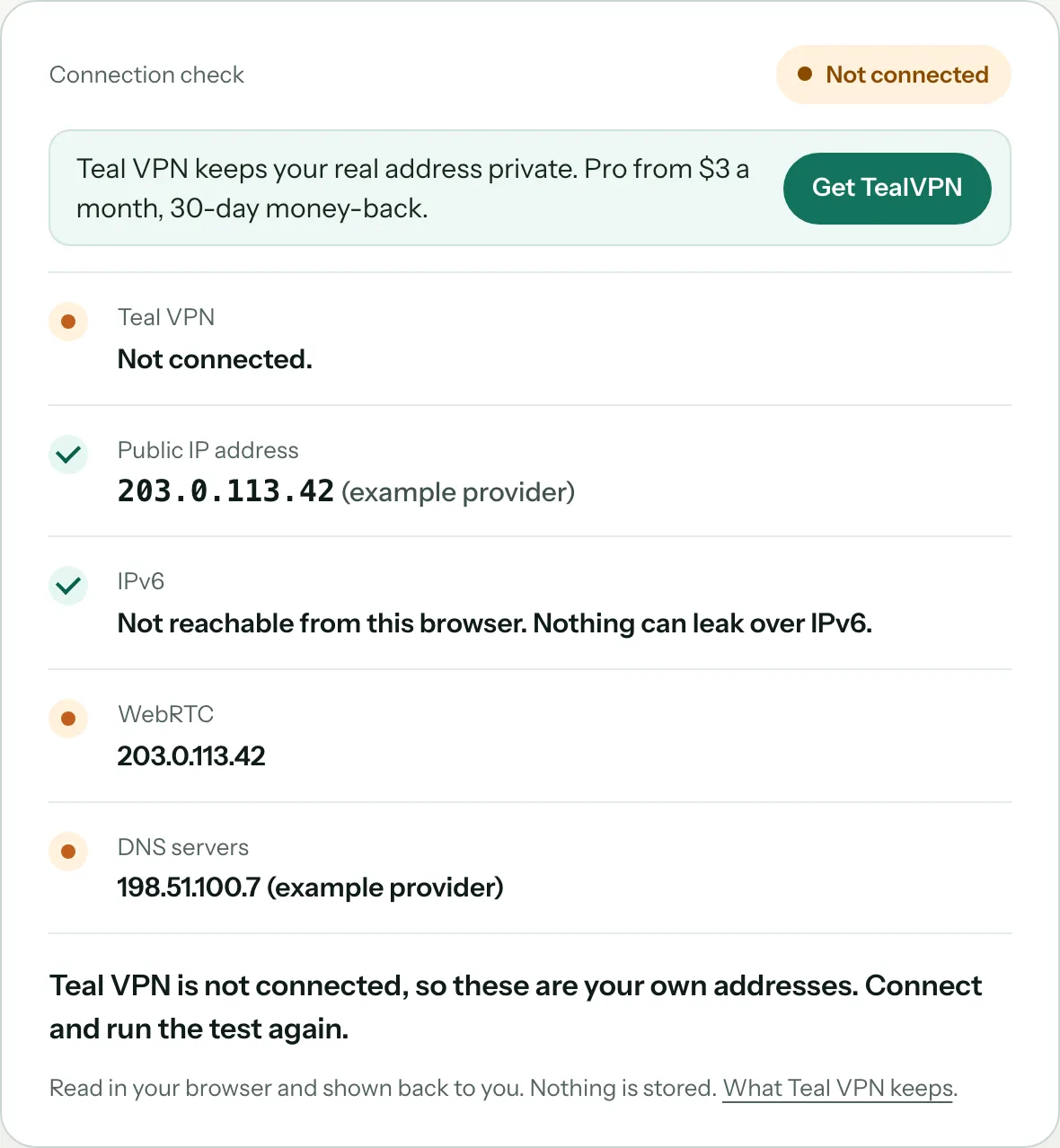
Run Teal VPN's IP and DNS leak test at https://tealvpn.com/ip-leak-test twice, once with the VPN off and once with it on, and compare the DNS servers it lists. The test needs no sign-in and works with any VPN, not only Teal. The whole check takes about a minute.
Get a baseline with the VPN off
Open https://tealvpn.com/ip-leak-test with no VPN running. Note the public IP and the owner and country of the DNS servers shown. For most people this is their internet provider. That is what a leak looks like, so remember it.
Connect the VPN and reload
Turn the VPN on, pick a server in another country if you can, and reload https://tealvpn.com/ip-leak-test. The public IP should now match the VPN location. Every DNS server listed should belong to the VPN company or to a resolver you chose on purpose. If your provider's name appears anywhere in the list, you have a leak.
Get a second opinion
Run the extended test at dnsleaktest.com, which fires many lookups and catches servers that only show up now and then. browserleaks.com/dns is a good third check and also runs an IPv6 and a WebRTC test on the same site.
Repeat per device and per network
Leaks are specific to one device on one network. Test the phone on mobile data and again on hotel Wi-Fi. Test the laptop at home and again on a strict network. A clean result on one does not cover the other.
Repeat after the connection changes
Reconnect the VPN, close the laptop lid and open it again, switch Wi-Fi networks, and test once more each time. Many leaks only appear for a few seconds after a change, which is exactly when a quick test misses them.
How to read the result
The DNS servers listed should belong to your VPN and sit in or near the country you connected to; anything owned by your internet provider is a leak. Use the table below to match what the test shows to what it means.
| What the test shows | What it means | What to do |
|---|---|---|
| DNS servers owned by the VPN company, country matches the VPN server | No leak. Lookups travel inside the tunnel. | Nothing. Re-test on other devices and networks. |
| DNS servers owned by your internet provider | Full leak. Every site name goes to the provider with your real IP. | Work through the fixes below, starting with the router and IPv6. |
| A mix of VPN servers and provider servers | Partial leak. Usually IPv6 or a second network adapter taking some lookups. | Turn off IPv6 in the VPN app or on the adapter, then re-test. |
| Google, Cloudflare or Quad9, which you set yourself | Not a leak to your provider. If the VPN routes all traffic, the lookup still rides the tunnel, but the resolver you chose sees it instead of the VPN's. | Fine if that is what you want. Switch the OS back to automatic DNS to use the VPN's resolver. |
| Servers in your home country while the VPN is abroad, owner unknown | Likely a leak. Some providers quietly answer DNS themselves whichever server you asked for. | Treat as a leak and fix. Use the VPN app rather than a manual setup. |
| Public IP shows your real location | Not a DNS problem. The VPN is off, dropped, or your IPv6 address is leaking. | Reconnect, then check the IPv6 result separately. |
Why DNS leaks happen even when the VPN says connected
Most DNS leaks come from the operating system choosing a DNS server the VPN did not set, and the most common culprit is a home router handing out its own local address as the DNS server. Local network traffic is not sent through the tunnel, so a lookup to 192.168.x.x goes to the router, and the router passes it to the provider in plain sight.
IPv6 is the second big cause. Many VPN setups only tunnel IPv4. If your provider also gives you an IPv6 address, lookups and even web traffic can leave over IPv6 while the IPv4 tunnel looks perfect.
Teredo, a built-in Windows feature meant to help IPv4 and IPv6 work together, is a known third cause. It can carry DNS outside the tunnel. An admin command prompt and 'netsh interface teredo set state disabled' turns it off.
Browser DNS over HTTPS is the fourth. Firefox and Chrome can send lookups over HTTPS to their own chosen resolver, often Cloudflare or Google. The test then shows that resolver rather than the VPN's. The provider does not see the names, but the VPN's resolver is not being used either.
Manual setups leak more than apps. Loading a config file into a generic VPN client often leaves the old DNS settings in place. Windows can also send the same lookup to every network adapter at once and accept whichever answers first. Finally, every reconnect, every sleep-and-wake and every Wi-Fi switch creates a gap of a few seconds with no tunnel at all.
How to fix a DNS leak
Use the VPN company's own app with its DNS and leak protection switched on, turn off IPv6 if the VPN does not tunnel it, and re-test; those three steps fix most leaks. Work down this list and run https://tealvpn.com/ip-leak-test after each change so you know which one worked.
1. Use the official app, not a manual profile. Apps set the DNS server and put it back when you disconnect. 2. Turn on the kill switch so nothing leaves the device during a reconnect gap. 3. Turn off IPv6 in the VPN app, or on the network adapter if the app has no setting. 4. On Windows, disable Teredo with the command above. 5. Set the operating system DNS back to automatic if you once typed in Google or Cloudflare by hand and now want the VPN's resolver. 6. In Firefox or Chrome, either turn off DNS over HTTPS or accept that the browser's resolver, not the VPN's, will show in the test. 7. If the router is handing out its own address as DNS, change the router's DNS settings or set DNS directly on the device.
If a leak survives all seven steps, the VPN itself is the problem. Switch providers. Any VPN worth paying for publishes a money-back period long enough to run these tests on every device you own.
The two tests people forget: IPv6 and WebRTC
A plain DNS leak test can pass while your IPv6 address or a WebRTC request gives away your real location, so run both extra checks. 'ipv6 dns leak test' is its own search for a reason: a VPN that only carries IPv4 leaves the IPv6 side wide open, and a quick test that only queries over IPv4 reports a clean result. browserleaks.com/dns and dnscheck.tools both show IPv6 resolvers separately. If you see an IPv6 server owned by your provider, turn IPv6 off and re-test.
WebRTC is the browser feature behind video calls. A web page can ask the browser for its local and public IP addresses directly, without any DNS lookup at all, so a DNS test never catches it. dnsleaktest.com/webrtc.html and browserleaks.com both run a WebRTC test. If your real public IP appears, turn WebRTC off in the browser or use the VPN's browser extension, which usually handles it.
Why the test shows an IP you did not set
The test shows the address the resolver uses to send its question out to the internet, not the address you typed into your settings, so 1.1.1.1 or 9.9.9.9 will never appear as themselves. A network admin on Spiceworks set Cloudflare (1.1.1.1) and Quad9 (9.9.9.9) everywhere and still saw unfamiliar addresses in his results. That is normal. Big public resolvers answer from many servers around the world, each with its own outbound IP, and the test lists those.
The thing to check is the owner, not the number. If the owner is Cloudflare, Quad9, Google or your VPN company, the lookup went where you sent it. If the owner is your internet provider when you set something else, the provider is intercepting DNS, and that is a leak you cannot fix by changing the number again. Only a tunnel that carries DNS inside it gets past that.
Where Teal VPN fits
Teal VPN's leak test at https://tealvpn.com/ip-leak-test works with any VPN and needs no account, so you can use it whether or not you ever use Teal. It shows your public IP and the DNS servers answering your lookups on one screen.
If you want to test Teal itself, Teal Free gives 500 MB a day on 2 devices with nothing but an email, which is more than enough to run every test on this page. Teal apps cover Android, Android TV, Windows, Mac, Linux and Chromebook, plus Chrome, Edge and Firefox extensions. Every connection on every plan uses Teal Secure obfuscation, and the app tries other routes by itself when a network closes one, which matters on strict networks where other VPNs stop. Teal keeps no browsing logs and shows no ads.
As of October 2026, Teal Pro costs $7.99 a month, $24 for six months or $36 a year ($3 a month), with up to 5 devices on the yearly plan and 3 on the others, and a 30-day money-back period. Run the leak tests on every device during those 30 days. Servers are in 14 countries: Australia, Canada, France, Germany, India, Japan, Lithuania, Netherlands, Singapore, South Korea, Sweden, Switzerland, the United Kingdom and the United States.
Keep reading
References
- DNS leak test (dnsleaktest.com)
- DNS Leak Test (BrowserLeaks)
- DNS leak explained (IONOS Digital Guide)
- Understanding DNS leak test results (Spiceworks Community)
Need help with Teal? Contact support.
Questions
What is a DNS leak test?
It is a web page that makes your browser look up unique hostnames and then reports which DNS servers asked for them. That tells you whether your lookups go through the VPN or straight to your internet provider.
How do I know if my DNS is leaking?
Run https://tealvpn.com/ip-leak-test with the VPN on. If any DNS server listed is owned by your internet provider, it is leaking. If every server belongs to the VPN or to a resolver you chose, it is not.
Is a DNS leak dangerous?
It defeats most of the point of a VPN. Your provider sees the name of every site you visit alongside your real IP, even though the page content itself is encrypted.
Why does the test show Cloudflare or Google instead of my VPN?
Either you set that resolver in the operating system or your browser is using DNS over HTTPS. Your provider does not see the names, but the VPN's resolver is not in use. Set DNS back to automatic or turn off the browser setting if you want the VPN to handle it.
Does the DNS leak test check IPv6?
Not always. Use browserleaks.com/dns or dnscheck.tools, which list IPv6 resolvers separately. If an IPv6 server owned by your provider appears, turn off IPv6 on the device or in the VPN app.
Can a DNS leak test be wrong?
It can show an unfamiliar IP that is actually fine, because resolvers like Quad9 and Cloudflare answer from many outbound addresses. Check the owner name, not the number. A test can also miss leaks that only happen for a few seconds after a reconnect.
Which DNS leak test is best?
They all use the same method, so pick one that needs no sign-in and shows the server owner. https://tealvpn.com/ip-leak-test, dnsleaktest.com and browserleaks.com/dns together cover DNS, IPv6 and WebRTC.