Under 50 ms is good ping; over 100 ms you feel the delay
Ping is the round trip time, in milliseconds, for a packet to reach the game server and come back. Under 50 ms is good for most games, 50 to 100 ms is playable with some lag, and over 100 ms is where shots and dodges start landing late.
The target depends on the game. Shooters and racing games want under 50 ms. MMOs stay playable up to around 250 ms, though real-time player-versus-player fights are better under 150 ms. Strategy games are fine just under 200 ms.
Above roughly 170 ms some games refuse the connection outright, and every extra 50 ms is a measurable disadvantage against the other players in the match.
- 20 ms
- ideal for gaming
- 100 ms
- delay you notice
- 170 ms
- some games reject the connection
| Ping | What it feels like | Good enough for |
|---|---|---|
| 10 to 25 ms | No noticeable delay | Competitive shooters, racing, video calls |
| 25 to 50 ms | Smooth | Almost any online game |
| 50 to 100 ms | Occasional lag | Casual play, MMOs, strategy games |
| 100 ms and up | Visible delay, rubber-banding | Very little; some games reject you above 170 ms |
Measure ping before you change anything, and measure at the bad time
Test ping twice: once with the game's own counter and once from your computer's command line, both at the time of day when the lag actually hits. One number taken on a quiet morning tells you nothing.
The in-game counter is the one that matters because it measures the exact server you play on. The command line test tells you whether the whole connection is slow or just that one game.
We have not published a dated ping run for this page yet; the order below is the one we use when someone on the team complains about lag, and the measurement loop is what makes it work.
Turn on the game's network overlay
Look in the game settings for performance stats, network stats or a ping display; the wording changes from game to game. Note the ping and whether it is steady or jumping around.
Run a command line ping
On Windows open Command Prompt, on Mac or Linux open Terminal, and type ping followed by a website or your game's server address. Watch the time values and any line that says request timed out.
Ping your own router
Ping the router's address, printed on its label. If that alone is high or drops packets, the problem is inside your home, not with your provider.
Repeat on a cable
Run the same tests with an Ethernet cable plugged in. The gap between the two runs is what Wi-Fi is costing you.
Ping, latency, jitter and packet loss are four different problems
Ping is the measurement, latency is the delay being measured, jitter is how much that delay varies, and packet loss is data that never arrives at all. Most lag complaints turn out to be jitter or loss, not a high average ping.
A steady 80 ms feels better than a 30 ms line that spikes to 200 ms every few seconds. If your ping counter looks calm but you still teleport around the map, look at packet loss before anything else.
We think most players over-worry about the average and under-worry about the spikes. A game can smooth over a steady delay; it cannot invent a packet that never arrived.
| Term | What it is | How it feels in a game | First thing to check |
|---|---|---|---|
| Ping | Round trip time in milliseconds | Actions land late | Server distance, Wi-Fi |
| Latency | The delay itself, which ping measures | Same as ping | Same as ping |
| Jitter | How much ping varies from one packet to the next | Stutter, rubber-banding | Wi-Fi interference, busy home network |
| Packet loss | Packets that never arrive | Teleporting, hits that do not register | Cable, router, the provider's line |
High ping comes from distance, Wi-Fi, a busy line or old gear
The biggest cause is physical distance to the server, and nothing at home fixes that; everything else on the list you can change. Wi-Fi interference, other devices downloading, an old router and background updates are the usual home-side causes.
Your provider matters too. A line with plenty of download speed can still have high ping if the route to the game server is long or congested at peak hours, which is why a speed test can look fine while the game stutters.
Security software that inspects every packet adds a small delay as well, which is why adding the game as an exception is a common and cheap fix.
- Ping to your own router is more than a few milliseconds or drops packets
- Ethernet is clearly better than Wi-Fi on the same device
- Lag starts the moment someone else in the house streams or downloads
- The router is several years old or runs hot to the touch
- Ping is fine late at night and bad in the evening
Eight fixes to reduce ping, in the order to try them
Start with the cable, then the server, then the network, then the router. Each step is cheap, and you can measure the effect with the test above before moving to the next one.
Most people have fixed their ping by step three. Hardware comes last because it costs money and is usually not the cause.
In certain cases, selecting a slightly farther server with lighter traffic can deliver better performance.
Ezee Fiber, How to Lower Ping in 6 Easy Steps, February 2026
Plug in an Ethernet cable
A wired link removes interference from walls, microwaves and the neighbours' networks and is the single biggest ping fix for most homes. A long flat cable along the skirting board costs less than any upgrade.
Pick the nearest game server
Choose the region closest to you in the game's settings. If that region is crowded at peak hours, a slightly farther one with less traffic can give lower ping, so test two and keep the better one.
Stop downloads on every device
Pause game updates, cloud backups and anyone streaming in the house. Too many active devices raise ping for everyone, so disconnect what nobody is using.
Move closer to the router if you must stay on Wi-Fi
Put the console or PC in open air, not inside a cabinet, with as few walls as possible between it and the router, and keep it away from other electronics.
Add the game as an exception in your security software
Antivirus and similar tools inspect packets in and out, which adds a little delay. Make an exception for the game rather than switching protection off.
Close background apps
Browsers with many tabs, chat apps and game launchers all talk to the internet on their own. Close them before a session and see if the counter settles.
Restart and update the router
Restart it, install any firmware update it offers, and turn on QoS so the gaming device gets priority (steps in the next section).
Replace old equipment last
A router or modem that is several years old can struggle with modern traffic. Upgrade only after the steps above failed, and keep the receipt in case it changes nothing.
Router settings that cut latency: QoS, the short-range band and a fixed channel
Quality of Service (QoS) tells the router to serve your console or PC first when the line is busy; it is the one router setting that lowers ping on a shared home network. It lives in the router's admin page, usually under advanced or traffic settings.
Two more settings help Wi-Fi players: put the gaming device on the router's faster, shorter-range band, and set a fixed channel instead of auto if the neighbours crowd yours.
Open the router admin page
Type the router's address from its label into a browser and sign in with the password printed on the same label.
Turn on QoS and add your gaming device
Find QoS (sometimes called traffic priority or gaming mode), enable it, and move the console or PC to the top of the list.
Give the gaming device a reserved address
A reserved address keeps the QoS rule pointing at the right device after every restart.
Switch the gaming device to the shorter-range band and a fixed channel
The shorter-range band has less interference; a fixed channel stops the router hopping between channels in the middle of a match.
Reboot and retest
Run the ping test again at peak time and compare with the numbers you wrote down earlier.
A VPN usually adds ping; it helps only when your provider's route is worse
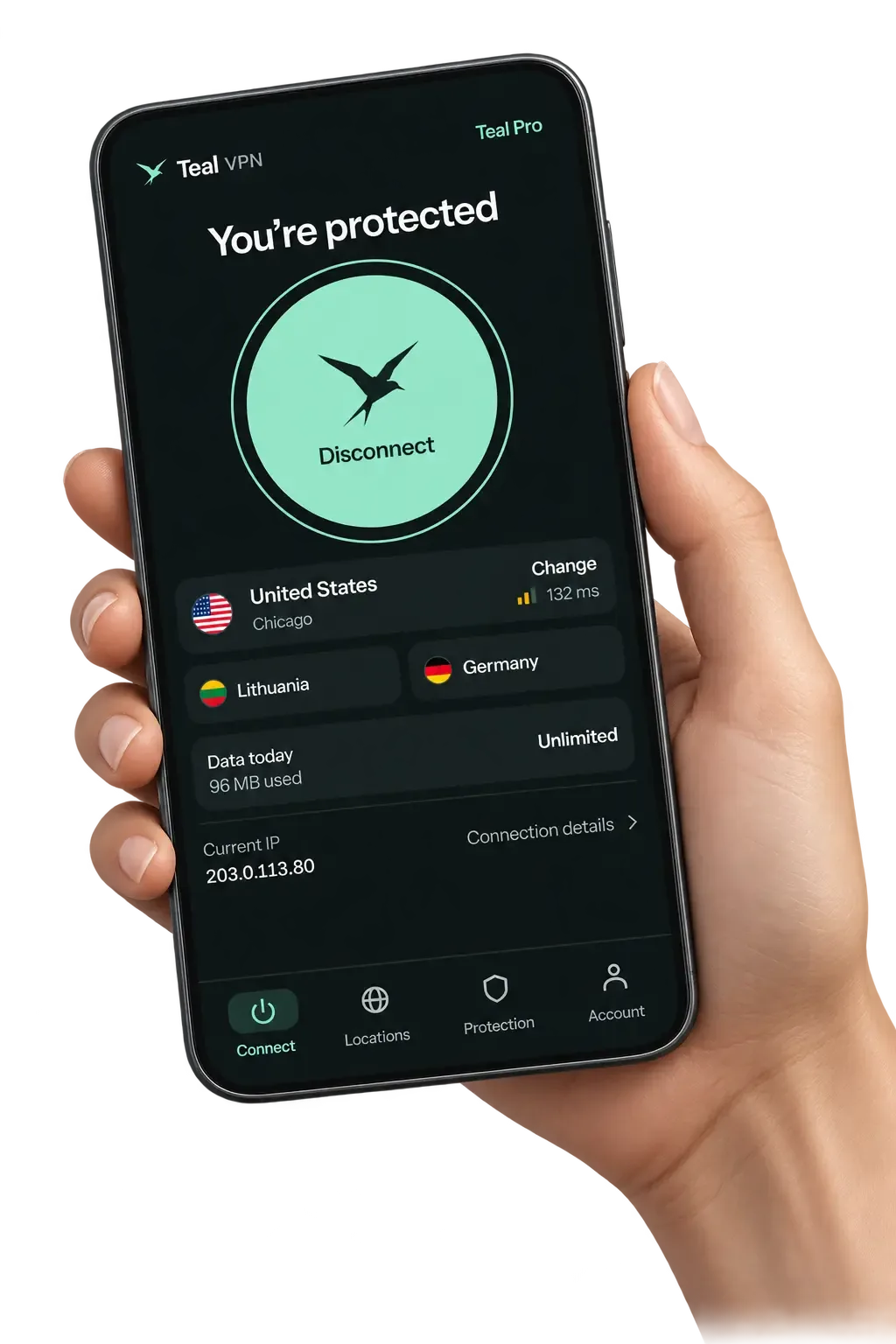
A VPN adds a stop between you and the game server, so by default it adds a few milliseconds rather than removing any. It lowers ping in two cases: when your provider sends your traffic on a long detour, or when your provider slows game traffic at peak hours and the encrypted tunnel escapes that treatment.
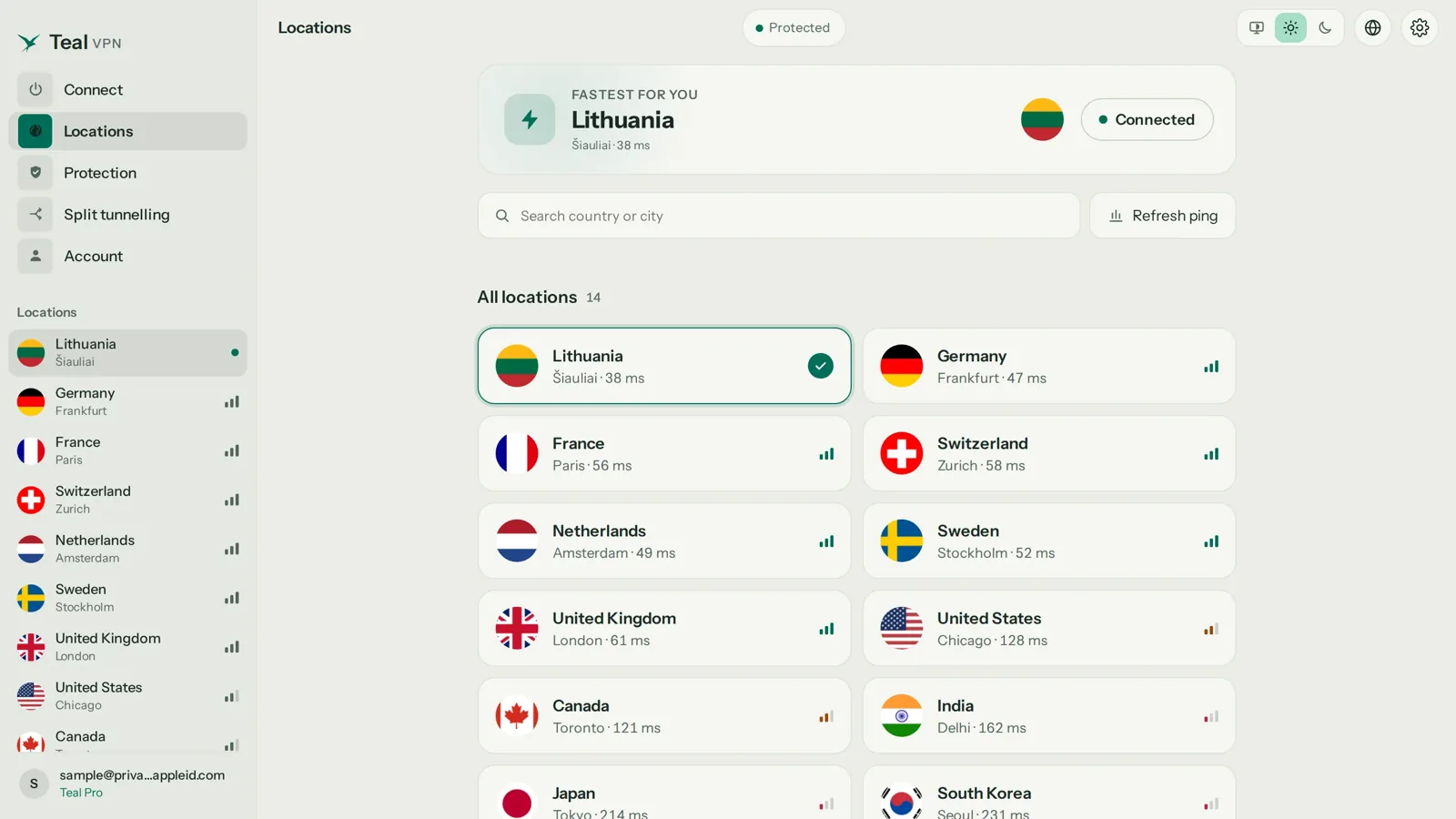
If you try it, pick a VPN server in your own country or in the country where the game server sits, check the in-game ping with and without the VPN, and keep whichever is lower. Teal VPN has servers in 14 countries including the United States, Canada, the United Kingdom, Germany, Japan, Singapore and South Korea, so most players can pick a nearby route; outside those countries the detour gets long and ping will rise.
Teal Secure obfuscation runs on every Teal connection and every plan, which matters on strict networks that restrict VPNs but also means each packet gets extra work. Treat a VPN as a routing experiment, not a ping booster. Teal Free gives 500 MB a day on 2 devices, which is enough to run the comparison before paying anything.
Keep reading
References
- Ezee Fiber: How to Lower Ping in 6 Easy Steps
- Kaspersky: How to lower ping and optimize online gaming performance
- r/HomeNetworking: How to lower ping?
Need help with Teal? Contact support.
Questions
How do I reduce ping in Roblox?
Roblox picks the server for you, so work on your side: plug in a cable, pause downloads on other devices, and close background apps. On Roblox mobile, sit near the router on Wi-Fi rather than playing on mobile data.
How do I reduce ping in Fortnite, Valorant or CS2?
Choose the matchmaking region closest to you, turn on the in-game network stats, and compare a wired session with a Wi-Fi one. If a nearby region is crowded in the evening, a slightly farther one can give lower ping.
How do I reduce ping on PS5 or Xbox?
Use an Ethernet cable, take the console out of any cabinet, pause downloads in the console's queue, and give it top priority in the router's QoS list. Consoles cannot change much themselves, so the router is where the gains are.
How do I reduce ping on mobile data?
Mobile data has higher and more variable latency than a home line, so expect spikes. Move to a window or outside for a stronger signal, switch off background sync, and use Wi-Fi whenever one is available.
Does a VPN lower ping for gaming?
Usually it adds a few milliseconds because it is an extra stop. It can lower ping when your provider's route to the game server is poor or throttled, so test with and without on the same server and keep the lower number.
Why is my internet fast but my ping high?
Speed tests measure bandwidth; ping measures distance and route. A fast line can still take a long or congested path to the game server, and Wi-Fi or a busy home network adds delay no download speed can fix.
How do I stop ping spikes?
Spikes are jitter, and they usually come from Wi-Fi interference or other devices on the network. Go wired, turn on QoS for the gaming device, pause other downloads, and restart the router if the spikes started recently.