The warning means your lookups are travelling in plain text, not that something is broken
“This network is blocking encrypted DNS traffic” is Apple's way of saying your device asked for encrypted DNS and the Wi-Fi network answered in plain text or not at all. It shows up as a Privacy Warning under the network name on iPhone, iPad and Mac.
DNS is the lookup that turns tealvpn.com into a server address before anything loads. Encrypted DNS, meaning DNS over HTTPS (DoH) or DNS over TLS (DoT), wraps that lookup so nobody between you and the resolver can read it. When the network refuses it, the device falls back to the old unencrypted kind.
Nothing stops working. Pages load, apps sync. What changes is that the router, and whoever runs it, can see the domain names you look up.
Usually it is the router, not a person, that stops encrypted DNS
Most of the time the culprit is a home gateway with a built-in DNS filter that only speaks plain DNS. That is why the warning fills forum threads about Xfinity gateways and Starlink routers: the box intercepts lookups for its own parental controls or security feature and has no idea what to do with a DoH request.
On office, hotel and campus networks the choice is deliberate. IT teams read DNS logs to spot malware calling home, to filter sites, and to resolve internal names that public resolvers like Cloudflare (1.1.1.1) or Google (8.8.8.8) have never heard of. Encrypted DNS rides on port 443 like normal web traffic, so it slips past those tools unless the network stops it at the resolver.
Regulated businesses in healthcare, card payments and finance are often required to log network traffic, and DNS counts. On a managed laptop the warning is the network doing its job.
Blocking encrypted DNS restores the visibility IT teams need to maintain secure environments. It's a preventative measure, not a punitive one.
Certified CIO, on business networks
| Network | Usual reason | What you lose |
|---|---|---|
| Home router with a built-in filter | The filter only understands plain DNS | Privacy of lookups from your provider and its filter vendor |
| Office or managed device | Logging for security monitoring and compliance | Nothing the network permits anyway; use your own device on your own data instead |
| Hotel, café, airport | Captive portal and ad or content filter run on DNS | Privacy of lookups from the venue and its vendor |
| Router set to a resolver without DoH/DoT | Resolver refuses the encrypted handshake | Encryption on the last hop to the resolver only |
Check which DNS server actually answers you before changing anything
Teal VPN's check at https://tealvpn.com/ip-leak-test shows your public address and the DNS servers answering your lookups, needs no sign-in, and works with any VPN or none. It tells you in one screen whether the resolver is your provider's, your router's, or a VPN's.
When we ran it on 23 October 2026 from a laptop in Germany with the VPN off, the result read Germany, Karlsruhe (Nordweststadt), organisation netcup GmbH, and “Teal exit: no”. Run from one of Teal VPN's own Frankfurt servers the same day, it read Germany, Frankfurt am Main, organisation UAB Cherry Servers, “Teal exit: yes”. That second shape is what a connected device looks like from the outside.
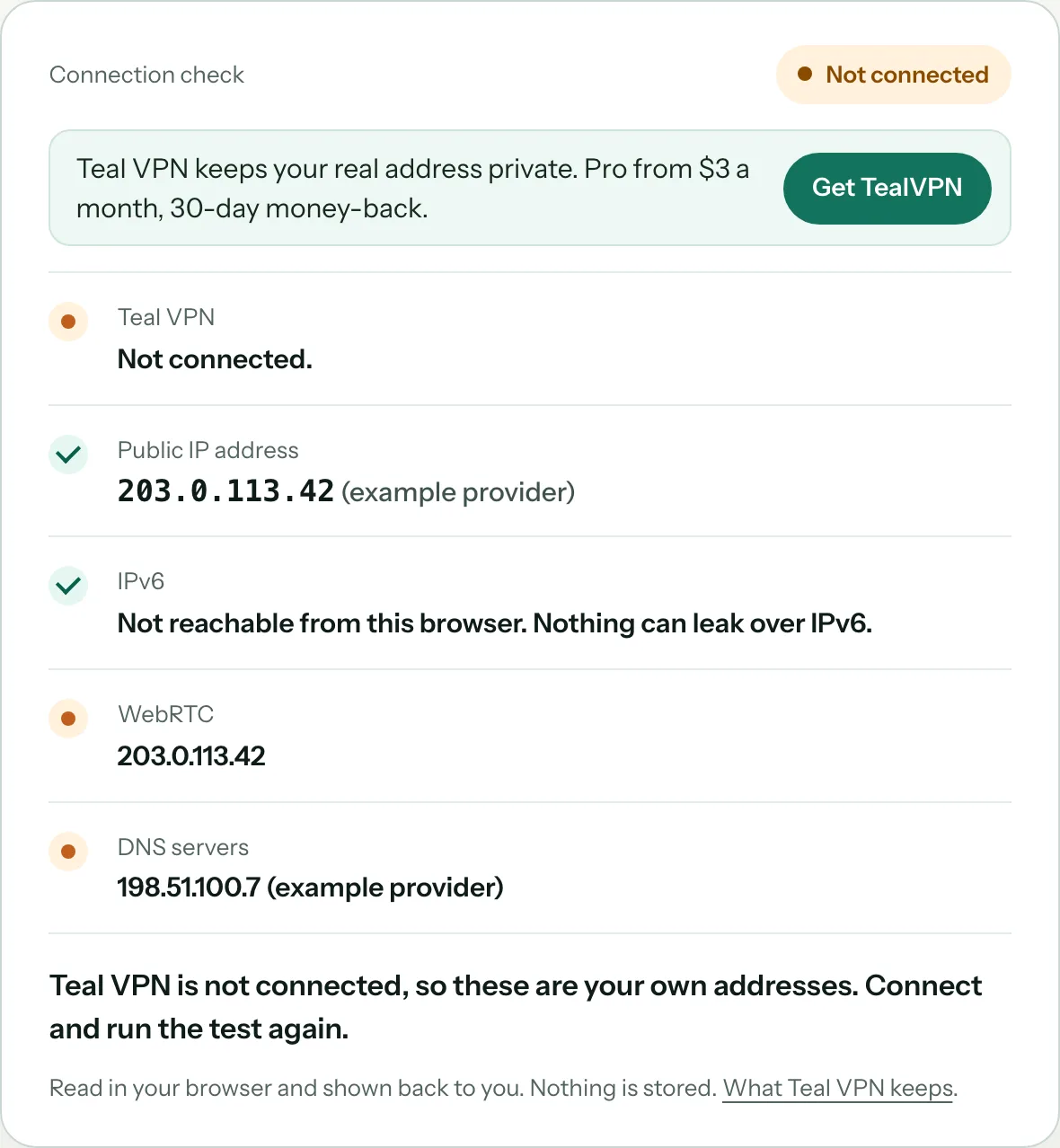
Open the check with the VPN off
Go to https://tealvpn.com/ip-leak-test on the network that shows the warning. Note the country, city and organisation on the DNS lines.
Read the organisation line
If it names your internet provider or a filtering company, the router or gateway is answering your lookups in plain text. If it names a public resolver, the router forwards to one that refuses DoH or DoT.
Run it again after each fix
A fix worked when the DNS organisation changes to the resolver you chose, or to a VPN's server with “Teal exit: yes”.
Get a second opinion
dnsleaktest.com and browserleaks.com run the same kind of check from different servers. If all three agree, trust the result.
On an iPhone the fixes are settings, because the device cannot force the network to change
The fastest fix on an iPhone is to stop relying on the network's resolver and bring your own. We have to be upfront here: as of 23 October 2026 Teal VPN has apps for Android, Android TV, Windows, Mac, Linux and Chromebook, but no iPhone app, so we could not run our own check on iOS this week. The steps below are Apple settings, not Teal.
Expect two outcomes. On home routers with a clumsy filter, a DNS profile usually clears the warning. On networks that drop every DoH and DoT connection on purpose, only a VPN tunnel carries the lookups through.
Forget the network and join it again
Settings, Wi-Fi, tap the network, Forget This Network, then reconnect. Some gateways only refuse encrypted DNS during the first handshake and a fresh join clears a stale warning.
Install an encrypted DNS profile
Several public resolvers publish a profile that makes iOS send DoH or DoT to them directly. Once installed, the device ignores the router's resolver; re-run the check to confirm the organisation line changed.
Try turning off Limit IP Address Tracking for that network
Some people report the warning disappears when this per-network switch is off. We have not confirmed it and it also turns off a privacy feature, so treat it as a last resort, not a fix.
Use a VPN on networks that drop encrypted DNS entirely
Inside a VPN tunnel the network sees one encrypted stream and cannot pick out the DNS requests at all. On iPhone that means another provider's app; on your other devices it can be Teal.
On a Mac or at your own router, fix the resolver and the warning goes away for every device
If the network is yours, change the router instead of each device. Log into the gateway, look for a DNS, parental control or “advanced security” setting, and either turn the provider's filter off or point DNS at a resolver that supports DoH and DoT. Reboot, then rejoin from the Mac and check Wi-Fi details for the warning.
On a Mac you can also set encrypted DNS per network in System Settings, Network, Wi-Fi, Details, DNS, and apps such as Teal VPN replace the system resolver while connected. With a cable or satellite gateway you cannot fully control, putting your own router behind it and letting your router do the DNS work is the cleanest cure.
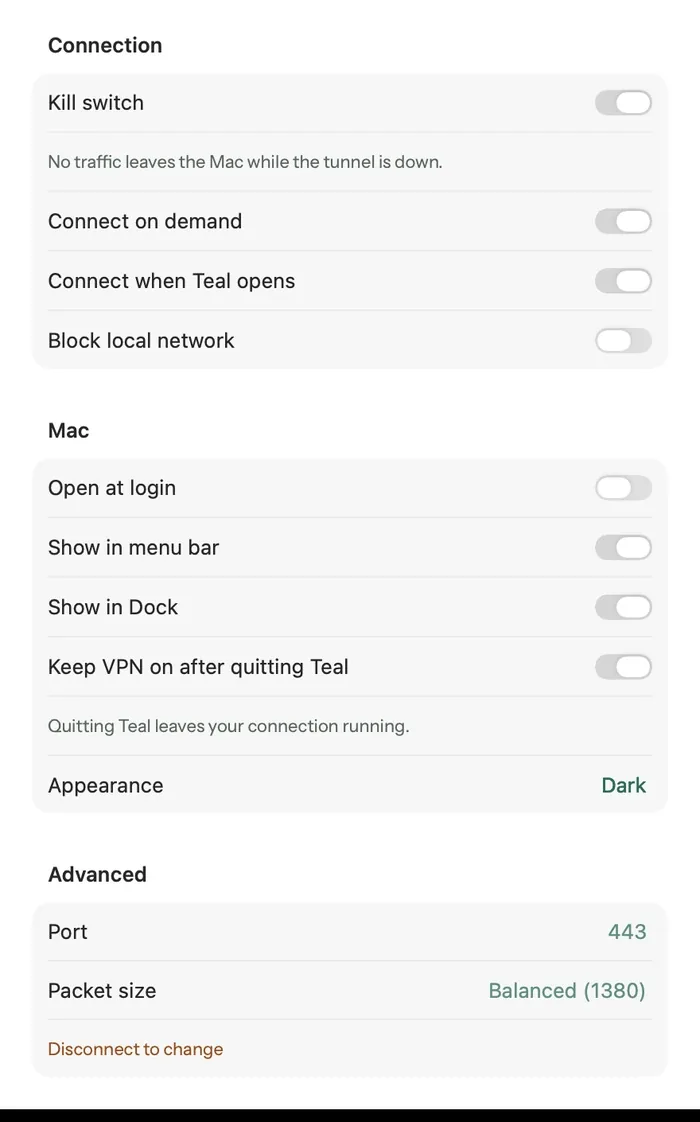
Find the gateway's DNS or security page
On provider gateways this is usually under Advanced or Security; the filter may have a brand name rather than saying DNS. Switch it off or change the resolver.
Reboot and rejoin
Devices cache the first answer they got. Restart the router, forget and rejoin the Wi-Fi, and check the Privacy Warning line again.
Confirm with the check
Open https://tealvpn.com/ip-leak-test; the DNS organisation line should now show the resolver you chose instead of the provider or filter vendor.
A VPN removes the problem because the network never sees a DNS request at all
With Teal VPN connected, every lookup travels inside the encrypted tunnel to the Teal server and is answered there, so the Wi-Fi network has nothing to refuse and nothing to read. The Privacy Warning may still sit on the Wi-Fi settings page, because Apple writes it about the network itself, but the check at https://tealvpn.com/ip-leak-test will show Teal's server and “Teal exit: yes”.
Teal Secure obfuscation is on for every connection and every plan, so the tunnel looks like ordinary traffic on networks that restrict VPNs, and the app tries other routes by itself when a network closes one. Teal keeps no browsing logs and shows no ads; Fxolio LLC, a United States company, runs it.
Teal Free gives you 500 MB a day on 2 devices with nothing more than an email. Teal Pro is $7.99 a month, $24 for six months or $36 a year ($3 a month), with a 30-day money-back guarantee, up to 10 devices on the yearly plan and 5 on the monthly and six-month plans, and servers in 14 countries including the United States, the United Kingdom, Germany and Japan. You can pay by card, Apple Pay, Google Pay, PayPal or crypto.
- $3
- a month on the yearly plan$36 billed once a year
- 30 days
- money-backon every Pro plan
- 14
- server countriesas of 23 October 2026
- 500 MB
- a day on Teal Free2 devices, email only
On a managed work network the right fix is usually to leave it alone
We think most people over-worry about this warning at home and under-worry about it in hotels and cafés. At home the party reading your lookups is your own provider, which already sees your traffic. In a hotel it is a venue and a filtering vendor you never agreed to.
On an employer's network the restriction is policy, often tied to compliance, and working around it on a company device can breach the rules you signed. Keep personal browsing on your own phone's data or your own device with a VPN, and let the managed laptop do what IT configured.
Do
- Fix your own router once instead of every device
- Use a VPN on hotel, café and airport Wi-Fi
- Re-run the DNS check after each change
- Ask IT if an internal site stops resolving after you installed a DNS profile
Don't
- Install DNS profiles or VPNs on a company-managed device without permission
- Assume the warning means the Wi-Fi is hacked
- Switch off Limit IP Address Tracking just to make the label disappear
- Expect any VPN to work on every network everywhere
Keep reading
References
- Certified CIO: why business networks restrict encrypted DNS
- TitanHQ: what DNS filtering is and how it is applied
- r/techsupport: can someone dumb down what this means for me?
Need help with Teal? Contact support.
Questions
What does “this network is blocking encrypted DNS traffic” mean on iPhone?
It means the Wi-Fi network's DNS server refused your iPhone's encrypted lookups (DoH or DoT), so they are sent in plain text. The connection works; the router and provider can see which domains you look up.
Is the privacy warning dangerous?
No. It is a label about privacy, not a sign of a hack. The only change is that whoever runs the network can read your domain lookups, which matters more on hotel or café Wi-Fi than at home.
How do I fix it on my home Wi-Fi?
Log into the router or gateway, turn off the provider's DNS filter or set DNS to a resolver that supports encrypted DNS, reboot, and rejoin. Then check https://tealvpn.com/ip-leak-test to confirm the DNS organisation changed.
Why does it show on Xfinity or Starlink networks so often?
Those gateways ship with their own DNS filter or security feature that only understands plain DNS, so they intercept lookups and refuse the encrypted handshake. Using your own router behind the gateway usually cures it.
Does a VPN stop the warning?
A VPN carries DNS inside its tunnel, so the network has nothing to refuse and nothing to read; the Teal check will show Teal's server answering. The label on the Wi-Fi settings page may remain because Apple writes it about the network, not about your traffic.
Can my employer see what I visit if encrypted DNS is off?
On a network they run, yes, domain lookups are visible in DNS logs, and that logging is often required by compliance rules. Keep personal browsing on your own device and connection.
Does Teal VPN have an iPhone app for this?
Not as of 23 October 2026. Teal VPN runs on Android, Android TV, Windows, Mac, Linux and Chromebook, plus Chrome, Edge and Firefox extensions, so the iPhone fixes on this page are Apple settings.