1. The VPN permission was never allowed
The first time a VPN app connects on a Mac, macOS asks you to allow its VPN configuration. If you closed that box or pressed Don't Allow, Connect never finishes. Check this first.
Where the switch lives depends on your macOS version.
If Teal VPN is not in that list at all, go to step 2.
macOS 13 Ventura and macOS 14 Sonoma
Open System Settings › Privacy & Security. Scroll down. If there is a line about Teal VPN with an Allow button, press Allow and confirm with Touch ID or your password.
macOS 15 Sequoia and later
Open System Settings › General › Login Items & Extensions › Network Extensions. Allow Teal VPN there and confirm with Touch ID or your password.
Connect again
Go back to the app and press Connect. Once the permission is allowed, one click connects. Teal VPN then also appears under System Settings › VPN.
2. The app runs from the disk image
A Mac app downloaded as a .dmg opens as a disk image. If you double-click the app inside that image instead of dragging it to Applications, it runs from the image. An app started this way cannot keep its VPN configuration, so Connect fails.
The direct download from tealvpn.com/mac is signed and notarised through Apple's Developer ID process. Once it sits in Applications, it updates itself.
Quit the app
Quit Teal VPN from its menu bar icon.
Eject the disk image
In Finder, press the eject arrow next to the Teal VPN image in the sidebar.
Install it properly
Open the .dmg again, drag Teal VPN to the Applications folder, then open it from Applications, not from the image.
Allow the permission
Press Connect. Allow Teal VPN, then allow the VPN configuration with Touch ID or your password.
3. Another VPN app or a work VPN holds the connection
A Mac can have many VPN apps installed, but only one can carry traffic at a time. A work VPN, an old VPN you forgot about, or a second app set to auto-connect can hold the connection. The app you want then does not connect.
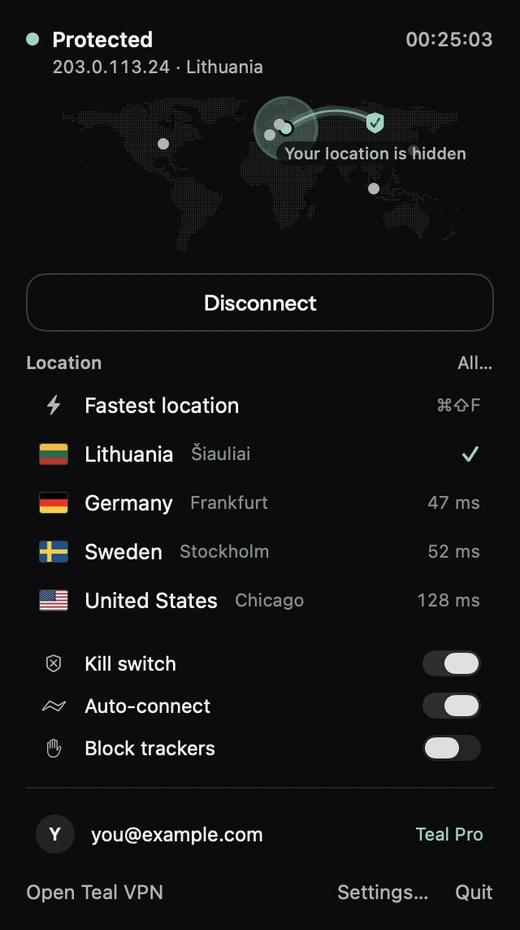
Teal VPN warns when another VPN is active and shows Not protected. Other apps may just spin.
If your work VPN must stay on, use one VPN at a time on that Mac.
Quit the other VPN fully
Closing its window is not enough. Quit it from its menu bar icon too. Some work VPNs need Disconnect first, then Quit.
Check System Settings › VPN
Any VPN that still shows Connected here is holding the connection. Disconnect it.
Connect again
Press Connect in the app you want to use.
4. The Wi-Fi sign-in page is not finished
Hotel, airport, café and mall Wi-Fi often has a sign-in page. Until you finish it in a browser, the network lets nothing through, VPN included. The Mac shows Wi-Fi as connected, so it looks like the VPN is at fault.
Turn the VPN off, open Safari, load any plain website, and finish the page. Then turn the VPN on. Hotel pages have their own problems. They are covered in the hotel Wi-Fi guide: /guides/vpn-not-working-hotel-wifi.
5. The network filters VPN traffic
Some networks filter VPN traffic: offices, schools and some hotels, for example. The sign-in page is done, websites load without the VPN, but the VPN never connects.
The quickest test is a phone hotspot.
Keep the hotspot result. Support asks for it, because it tells the network apart from the app.
Turn on a hotspot on your phone
Connect the Mac to the hotspot instead of the Wi-Fi.
Press Connect
If the VPN connects on the hotspot, the Wi-Fi filters VPN traffic. The app is fine.
Back on the Wi-Fi
If one route fails, Teal VPN switches to another by itself. Give it a minute. If no route works on that network, stay on the hotspot or wait for another network.
6. Teal Free daily data is spent
Teal Free gives 500 MB of data a day, shared by your devices, up to 2 devices, on the Lithuania location, with no payment details. When the 500 MB a day is used up, the connection stops carrying data until the next day. That is not a blocked network and not a broken app, but it looks like one.
Open Teal VPN and look at Data today. If it shows the 500 MB a day is spent, that is the answer. It resets daily. A phone on the same account counts too.
Teal Pro has unlimited data, every Teal location and up to 3 devices. Monthly and yearly plans start with 7 days free with a card on account.tealvpn.com; you pay nothing if you cancel before day 7.
7. Wrong date and time, a firewall, or a broken install
Three smaller causes are worth a minute each.
Date and time. A wrong clock can stop a VPN from connecting. Open System Settings › General › Date & Time and let the Mac set it automatically.
A third-party firewall. An app like Little Snitch can block a VPN app from reaching its servers. Allow the VPN app in the firewall's rules, or pause the firewall for one test.
Reinstall from Applications. Delete Teal VPN from Applications, download it again from tealvpn.com/mac, drag it to Applications and open it from there. Your sign-in and settings are kept in the account. Then allow the VPN configuration once more (step 1).
Teal VPN for Mac needs macOS 13.3 Ventura or later and runs on Apple silicon Macs. Support for Intel Macs is in testing.
8. What you see, what to check, and what to send support
Use this table when you are not sure which step applies.
If nothing on this list helps, write to [email protected] with five lines: your macOS version, the Teal VPN version, the location you chose, the exact message you see, and whether the hotspot works. Never send passwords, codes or keys.
| What you see | What to check first |
|---|---|
| Connect spins and never finishes | The VPN permission (step 1), then the disk image (step 2) |
| Connects, then stops working | Another VPN app or a work VPN (step 3) |
| Teal VPN shows Not protected | Another VPN is active (step 3) |
| Wi-Fi is connected but nothing loads, VPN on or off | The Wi-Fi sign-in page (step 4) |
| Works on a phone hotspot, not on this Wi-Fi | The network filters VPN traffic (step 5) |
| Connected on Teal Free, but pages stop loading today | Data today: the 500 MB a day may be spent (step 6) |
| Fails on every network | Date and time, firewall, reinstall (step 7) |
Keep reading
References
- Apple Support: Set up a VPN connection on Mac
- Apple Support: Change Login Items & Extensions settings on Mac
- Teal VPN for Mac
- Teal VPN: What we keep and what we don't
Need help with Teal? Contact support.